Getting Started with the NAO Robot and Vittascience

Created on Monday, January 13, 2025
Last updated on Monday, March 31, 2025
Last updated on Monday, March 31, 2025
view(s)
1 minute(s)
Beginner
Index
- Liste du matériel nécessaire
- Companion Application
- Simulation
- Send a program to NAO
This resource is designed to help you get started with the NAO robot. In just a few minutes, learn how to master the NAO robot using the Vittascience interface: how to connect to it, send a program, and much more.
To connect the NAO robot to the Vittascience interface, you need to use a Companion Application, which acts as a bridge between the web interface and the robot. Ensure that the NAO robot and your computer are connected to the same local network (Wi-Fi or Ethernet). For further details, please refer to this documentation.
To download the application:
Note: The application and source code is also available here.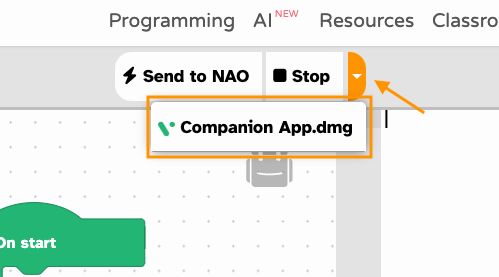 Once the application is downloaded:
The application must remain open while using the Vittascience interface. However, you can minimize its window.
When the NAO robot card is selected:
Note: The password and username of NAO should be the default ones ("nao" and "nao").
If everything is configured correctly, the pop-up will close automatically, confirming the connection is successful.
⚠️ Warning
When you connect the robot to Vittascience, NAO automatically exits solitary mode. During the connection process, NAO enters standby mode, and its motors are released at the end. This means that after execution, the robot will not hold its position.
If you want NAO to return to solitary mode afterwards, you can press the chest button twice.
To download the application:
- Click on the dropdown menu in the Vittascience interface.
- Select the link corresponding to your operating system:
- .dmg for macOS
- .exe for Windows
- .deb for Linux
Note: The application and source code is also available here.
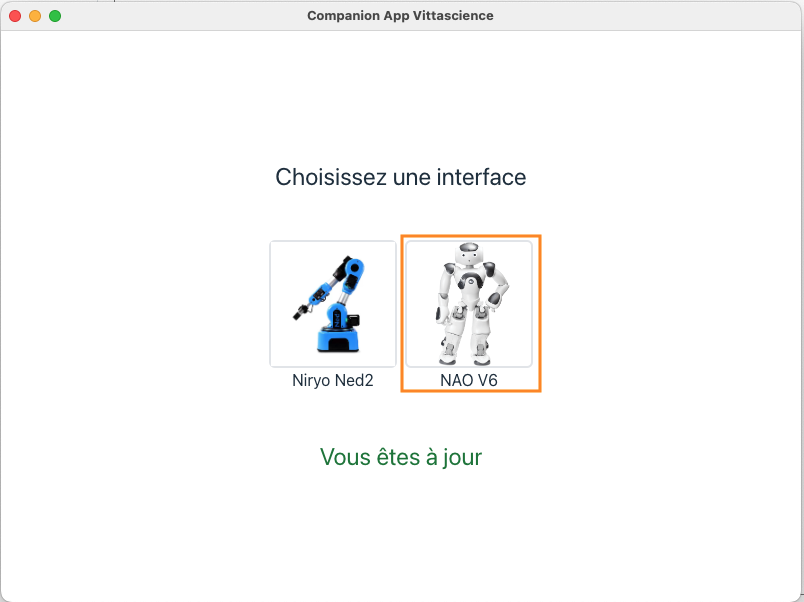
Once the application is downloaded:- Open the application.
- Select the card corresponding to the NAO robot.
The application must remain open while using the Vittascience interface. However, you can minimize its window.
When the NAO robot card is selected:
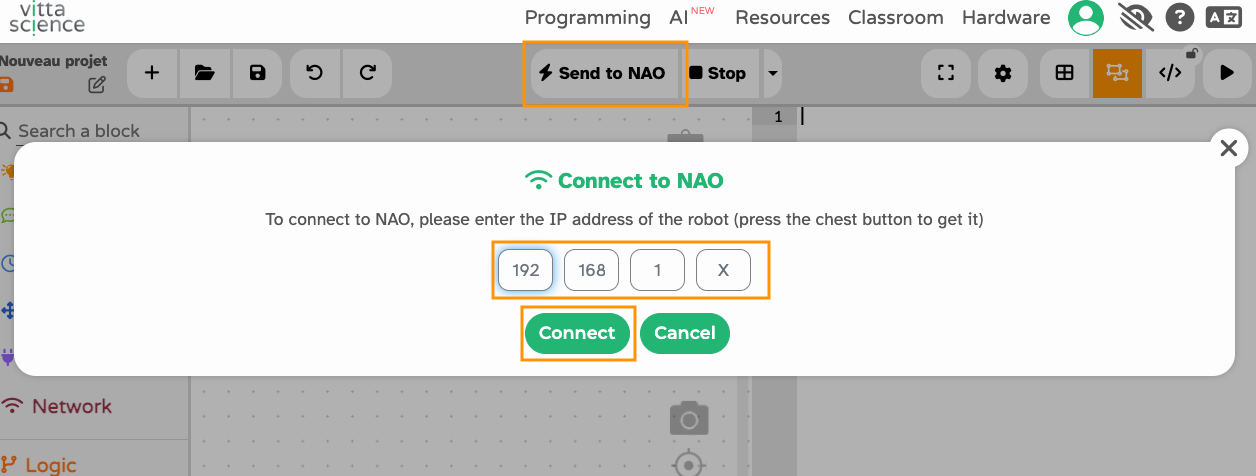
- Return to the Vittascience interface.
- Click the "Send to NAO" button.
- A pop-up will appear, asking you to enter your robot's IP address (you can obtain this by pressing the button on NAO's chest).
- Click "Connect".
Note: The password and username of NAO should be the default ones ("nao" and "nao").
If everything is configured correctly, the pop-up will close automatically, confirming the connection is successful.
⚠️ Warning
When you connect the robot to Vittascience, NAO automatically exits solitary mode. During the connection process, NAO enters standby mode, and its motors are released at the end. This means that after execution, the robot will not hold its position.
If you want NAO to return to solitary mode afterwards, you can press the chest button twice.
The Vittascience interface allows you to simulate your programs before sending them to the NAO robot. This feature is perfect for testing and fine-tuning your blocks without directly using the robot.
To create and simulate a program:
Every time a new block is added to the workspace, the simulation will automatically start in the background.To view the simulation:
Click the Play button located in the top-right corner of the navigation bar.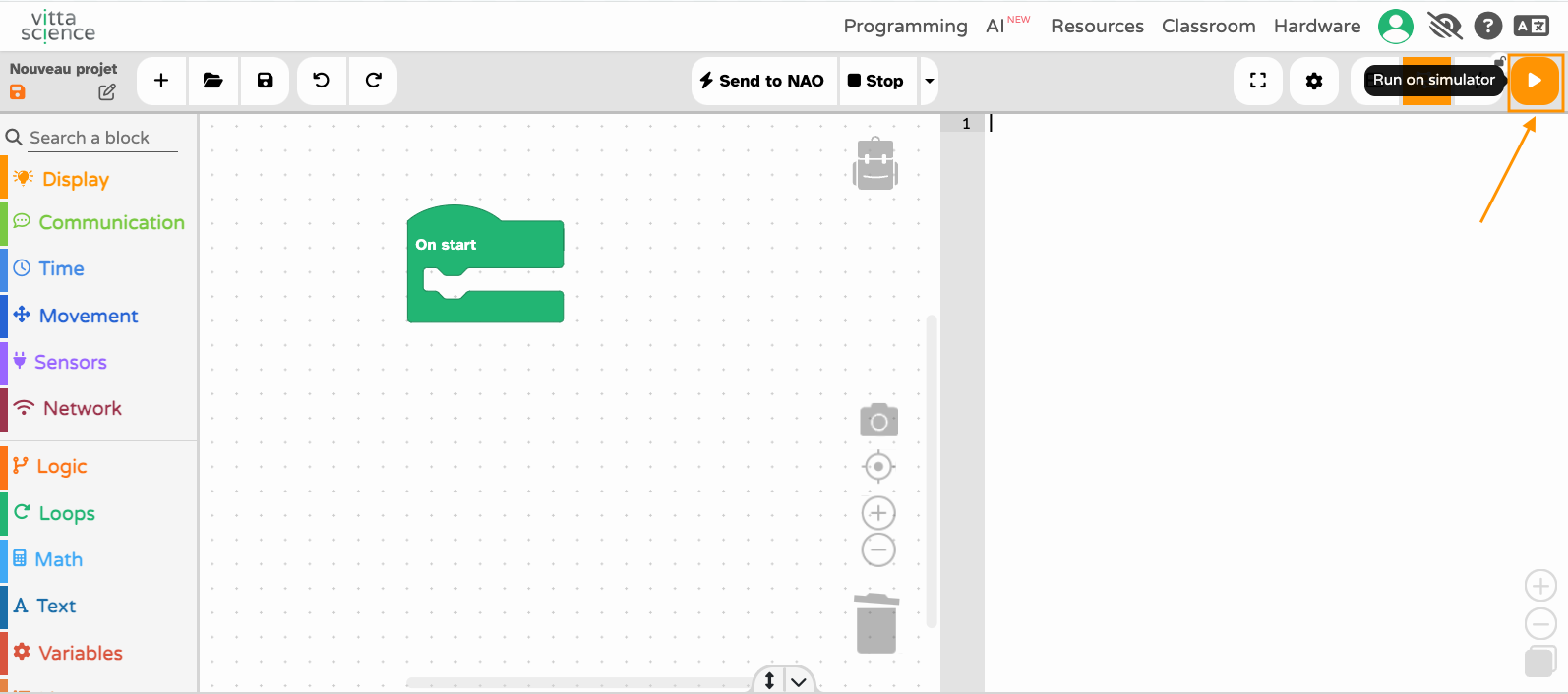
Here is a simple example of a program to control the NAO robot's LEDs using the Vittascience interface:
To create and simulate a program:
- Select blocks from the Blockly toolbox on the left side of the interface.
- Drag and drop the blocks into the workspace, placing them inside the "on start" block that is already present.
Every time a new block is added to the workspace, the simulation will automatically start in the background.To view the simulation:
Click the Play button located in the top-right corner of the navigation bar.
Here is a simple example of a program to control the NAO robot's LEDs using the Vittascience interface:
Once you are satisfied with your program and have already connected to the robot:
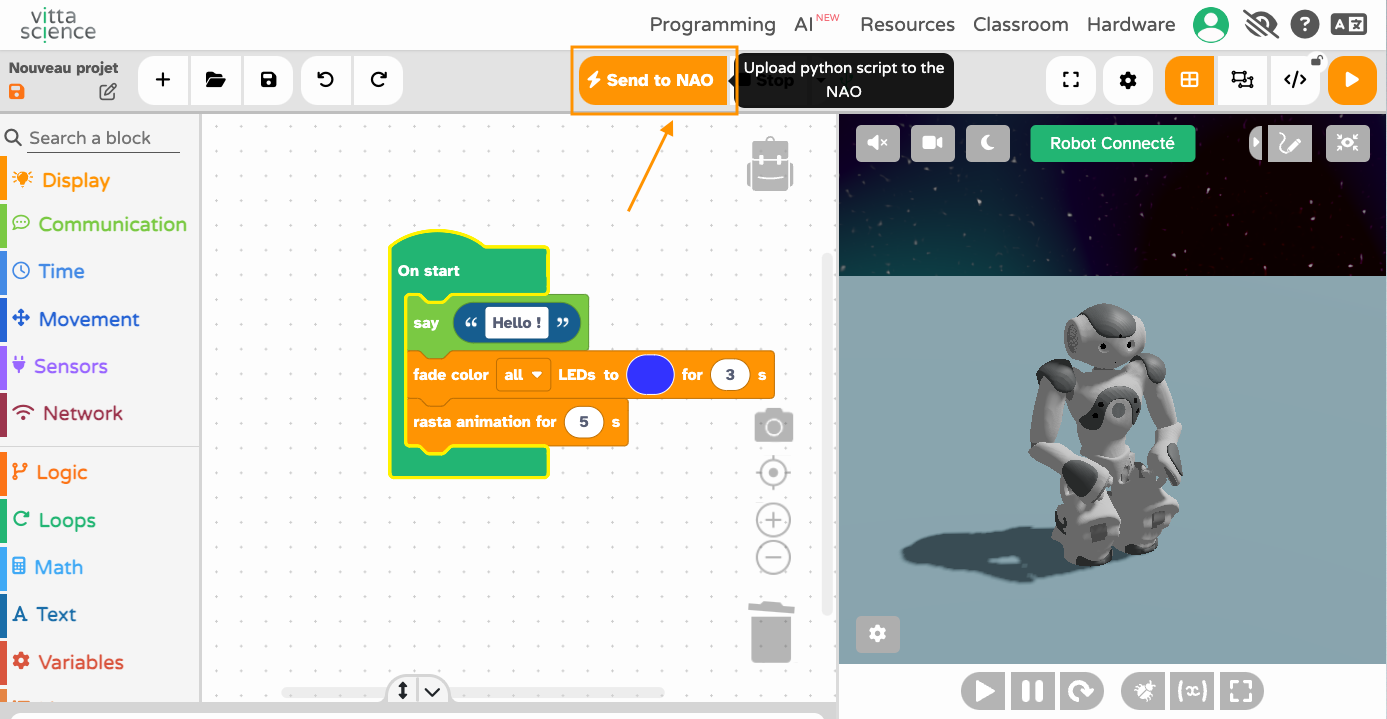
- Click the "Send to NAO" button.
- If the robot is in a resting position, it will automatically stand up before starting to execute the program.
- While the program is running, you can monitor its progress in the console.
- Once the program has finished executing, a message will appear indicating that the execution is complete.
User licence

This work is available under the terms of Licence Creative Commons Attribution - Sharing under the same conditions 2.0 UK

Copyright © 2026 Vittascience